
Screenshots
App details
- Version
- 1.72
- Size
- 949.13 KB
- Updated
- November 26, 2008
- Requires
- Windows XP
- Language
- English | German | Spanish | French | It...
- License
- Free
- Developer
- Greenfish Corporation
- Category
- Windows OS
SoftPas in:
This product is also available in the following languages:
About Greenfish Icon Editor Pro
Download Greenfish Icon Editor Pro – Free Icon Design Tool for Windows & macOS
Overview: A Professional Yet Friendly Icon Editor
Greenfish Icon Editor Pro is a full‑featured icon creation and editing suite that strikes a rare balance between power and ease of use. Whether you are a seasoned UI designer looking to craft a brand‑new icon set for a software product, or a hobbyist who simply wants to replace the default Windows or macOS icons with something personal, this tool gives you the flexibility to work with a wide range of graphic formats while keeping the workflow intuitive. The program can open existing ICO files, extract icons embedded in executable files, and even convert PNG, BMP, GIF, or JPEG images into perfectly sized icons ready for deployment. Its built‑in drawing canvas offers classic vector‑style tools—such as pen, brush, shape, and gradient editors—plus a collection of special filters that let you add depth, emboss, or glow effects without leaving the application. Keyboard shortcuts, drag‑and‑drop support, and a fully customizable interface further speed up the design process, so you spend more time creating and less time navigating menus.
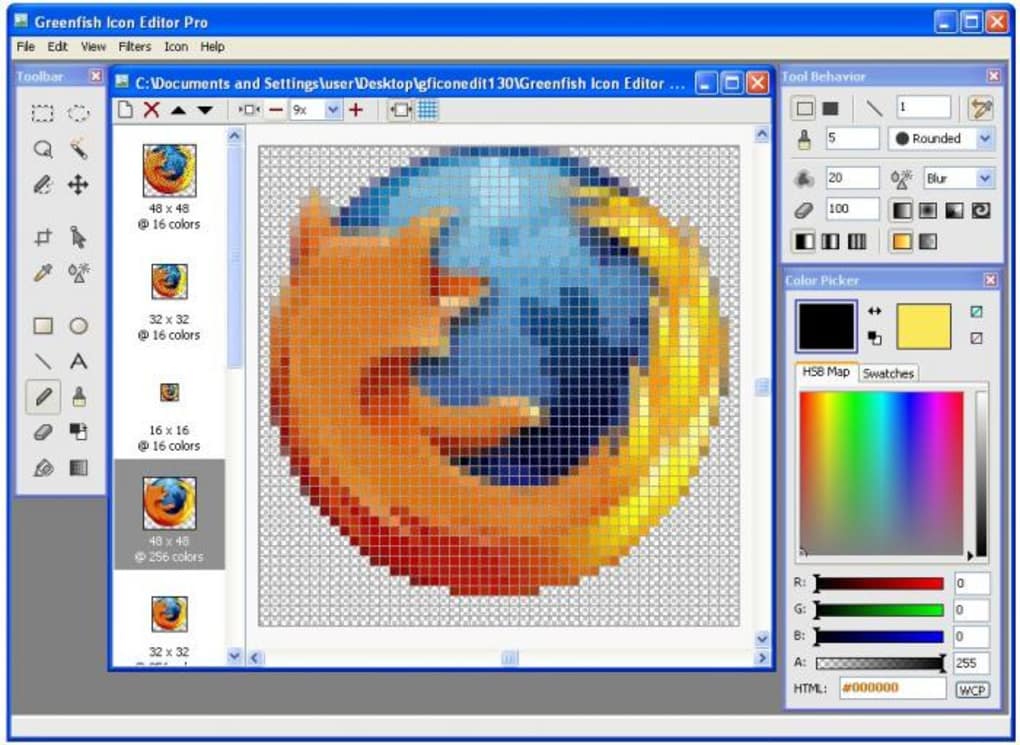
What sets Greenfish Icon Editor Pro apart from generic image editors is its dedicated focus on the icon format. The software automatically manages the multiple resolutions and colour depths required for modern Windows (16×16, 32×32, 48×48, 256×256) and macOS (ICNS) icons, ensuring that the final file works flawlessly across different DPI settings. The extracting tool is particularly handy for developers who need to reuse icons from existing applications or system libraries—simply point the program at an EXE or DLL, and every embedded icon is displayed for quick export. Security‑focused users will also appreciate that the application runs locally, without any hidden telemetry, and updates are delivered through a signed installer, guaranteeing a safe download experience.
In short, Greenfish Icon Editor Pro is more than just a free utility; it is a professional‑grade environment that empowers both novices and experts to produce polished, system‑compatible icons without the steep learning curve of larger graphic suites. Its blend of robust features, lightweight footprint, and user‑centric design makes it an essential addition to any developer’s toolkit.
Key Features That Make Greenfish Stand Out
- Multi‑resolution icon support (16‑256 px) for Windows and macOS.
- Direct extraction from EXE, DLL, and system library files.
- Conversion of PNG, BMP, GIF, JPEG, and TIFF to ICO/ICNS.
- Vector‑based drawing tools: pen, brush, shape, text, gradient.
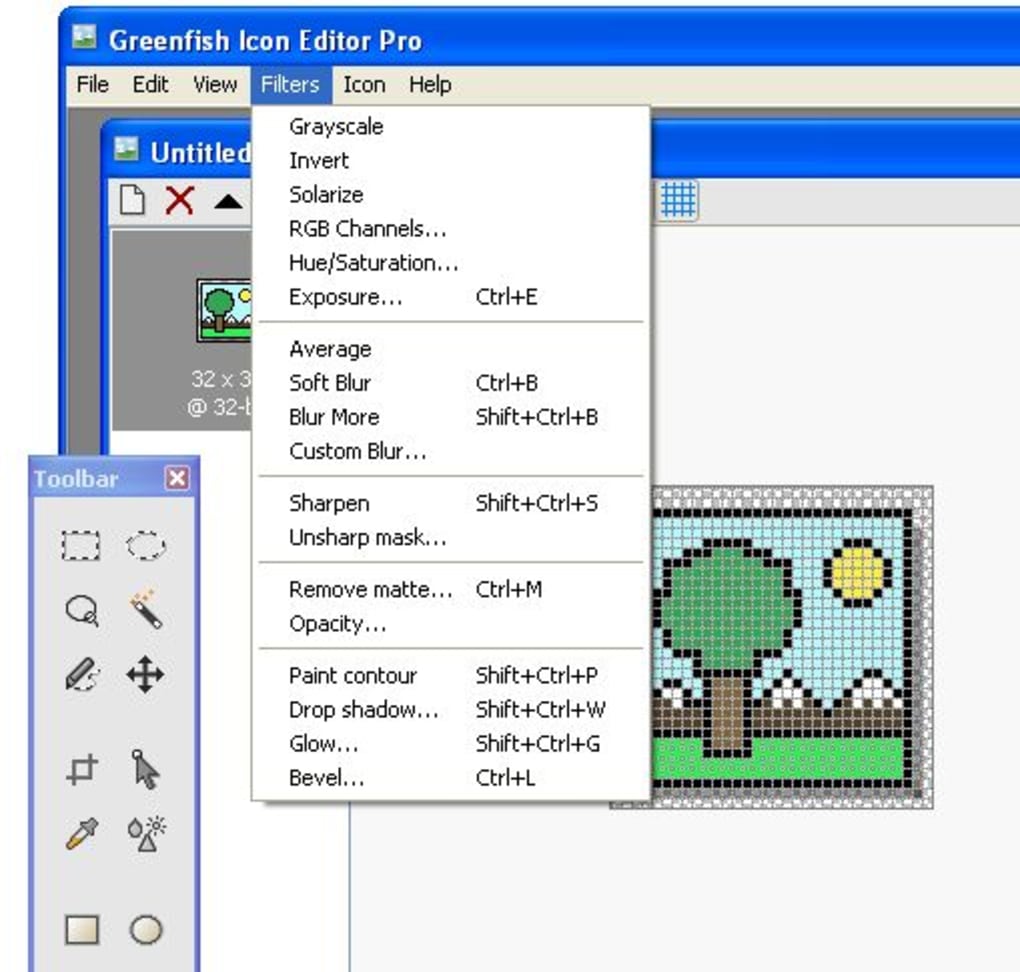
- Special filters: emboss, blur, sharpen, glow, and color‑shift.
- Keyboard shortcuts for common actions (Ctrl+Z, Ctrl+S, etc.).
- Drag‑and‑drop file import and layer reordering.
- Customizable workspace with detachable panels.
- Batch processing for resizing and exporting multiple icons.
- Free for personal and commercial use, with optional donation.
Each feature is built with performance in mind. For instance, the batch processor can handle dozens of source images in a single click, automatically generating all required icon sizes and saving them into a single ICO file. The extraction utility scans the binary structure of executable files, isolates icon resources, and presents them in a thumbnail view, letting you pick and save exactly what you need. The drawing canvas includes layer support, enabling non‑destructive editing—an essential capability when you need to tweak a single element without redoing the entire icon.
Beyond the core capabilities, Greenfish also integrates a set of convenience tools that streamline daily workflows. The “Undo/Redo” history tracks up to 100 steps, the “Zoom” function offers precise pixel‑level control, and the “Color Picker” can sample any on‑screen color, which is especially helpful when matching system themes. Because the software is written in native code, it launches instantly, even on older hardware, and consumes minimal RAM compared with heavyweight graphics suites. Whether you are polishing a brand logo, updating a desktop shortcut, or preparing assets for an app store, these features combine to create a seamless, end‑to‑end icon production pipeline.
Installation & Usage Instructions: Get Started in Minutes
Downloading and installing Greenfish Icon Editor Pro is straightforward. Visit the official website, click the “Download for Windows” or “Download for macOS” button, and save the installer (approximately 8 MB). The installer is digitally signed, ensuring a secure download free from malware. Run the executable (on Windows) or the .dmg file (on macOS) and follow the wizard: accept the license agreement, choose the destination folder (the default location works for most users), and click “Install.” After the brief installation, a shortcut appears on the desktop and in the start menu, ready for launch.
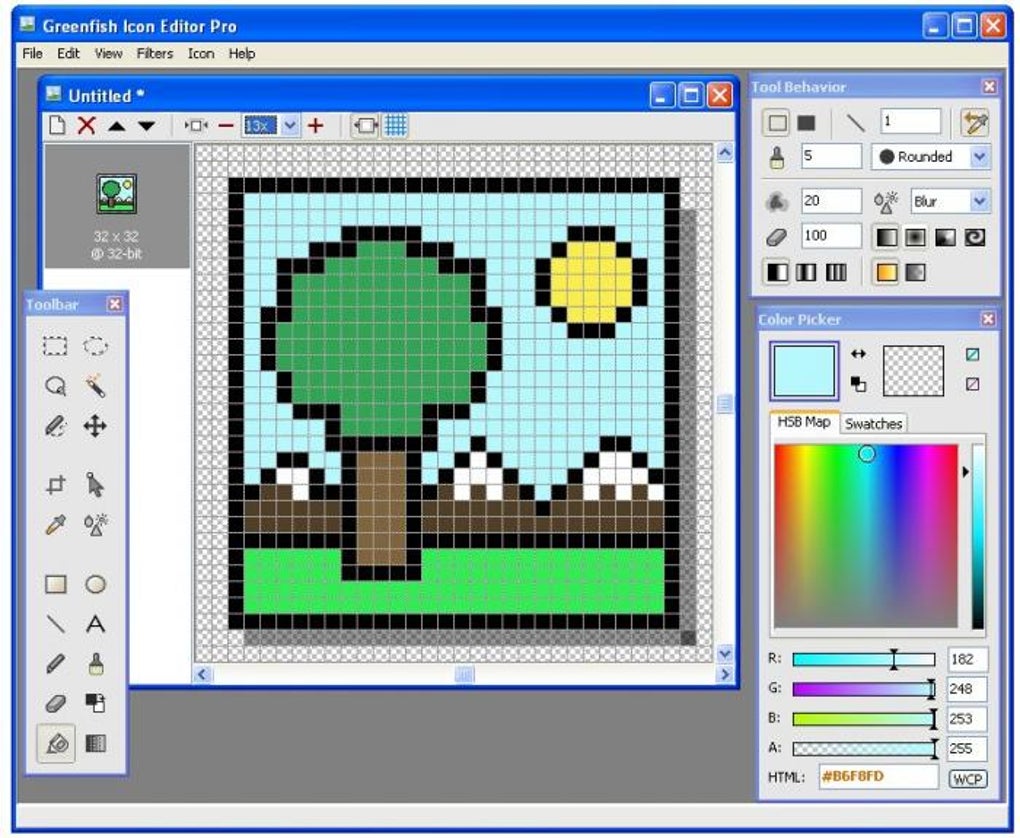
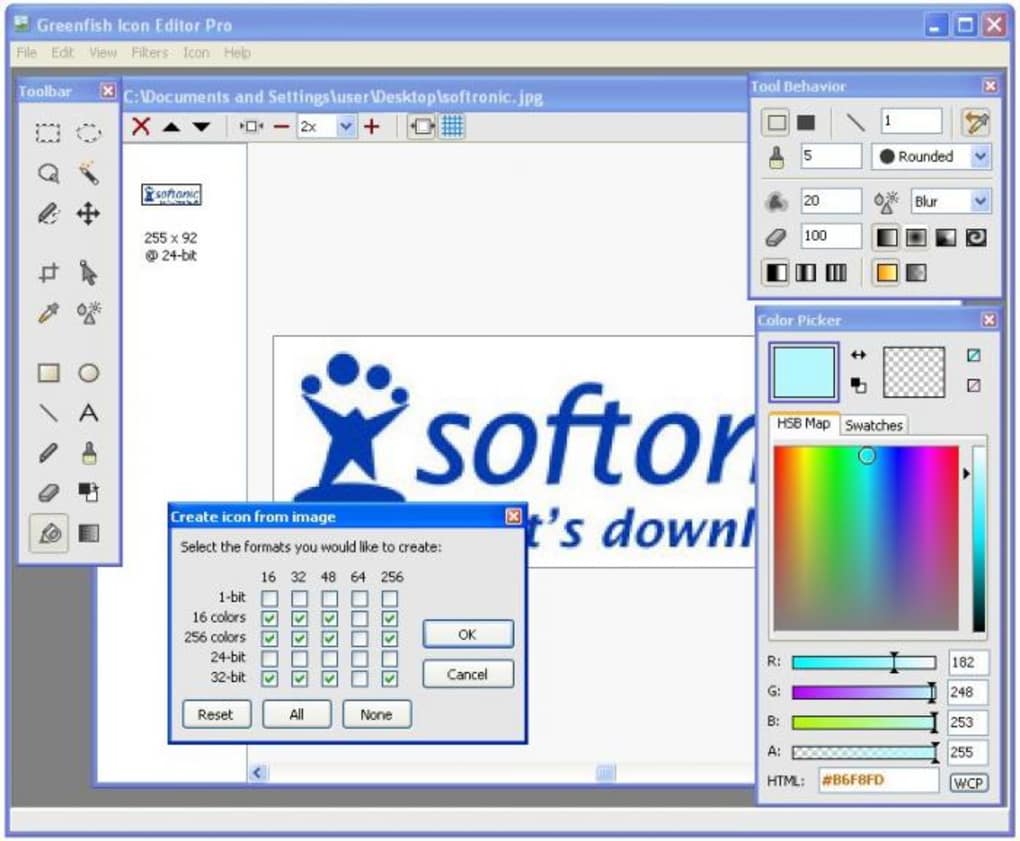
When you first open the application, you are greeted by a clean workspace consisting of a main canvas, a toolbar on the left, a layers panel on the right, and a status bar at the bottom. The interface is fully customizable; you can drag panels to any side or collapse them to maximize canvas space. To create a new icon, select File → New, then choose the desired dimensions (e.g., 256 × 256 px) and colour depth. The program automatically generates the required sub‑sizes, which appear as separate layers that you can edit individually or lock for consistency.
Importing assets is as simple as dragging a PNG file onto the canvas or using File → Import. Once the image is placed, you can resize, rotate, or apply filters via the right‑click context menu. For drawing custom shapes, select the appropriate tool from the toolbar, adjust stroke width and colour in the options bar, and start sketching. The “Preview” button lets you toggle between the current working view and a real‑time simulation of how the icon will look in Windows Explorer or macOS Finder.
When your design is complete, choose File → Save As and select the ICO (Windows) or ICNS (macOS) format. The application will bundle all layers into the appropriate file structure. If you need to extract icons from an existing executable, go to Tools → Icon Extractor, browse to the target file, and click “Scan.” The detected icons appear in a grid; select the ones you want, and click “Export.” Finally, to keep your work safe, enable the auto‑save feature under Preferences → General**; the program will write backup copies every few minutes, preventing data loss.
Compatibility and System Requirements
Greenfish Icon Editor Pro runs natively on both Windows and macOS platforms. The Windows version supports Windows 10, Windows 11, and earlier versions back to Windows 7 (32‑bit and 64‑bit). On macOS, the application is compatible with macOS 10.13 High Sierra and later, including the latest Ventura and Sonoma releases. The software does not require any additional runtime libraries such as .NET or Java, which helps keep the installation lightweight. Minimum hardware requirements are modest: a 1 GHz processor, 512 MB of RAM, and 50 MB of free disk space. For optimal performance—especially when handling large batch conversions—a dual‑core CPU and 1 GB of RAM are recommended.
The program also integrates smoothly with popular development environments. You can export icons directly into Visual Studio projects, or drop the generated ICO files into Xcode asset catalogs for iOS/macOS apps. Because the generated files adhere to industry standards, they work flawlessly with electron‑based applications, Unity, and Unreal Engine, making Greenfish a versatile companion for game developers as well.
Pros
- Free for both personal and commercial use.
- Comprehensive set of drawing tools and filters.
- Direct extraction from EXE/DLL files saves time.
- Automatic multi‑resolution handling eliminates manual resizing.
- Lightweight installer and low system resource consumption.
- Fully customizable workspace improves workflow ergonomics.
- Secure, signed installer with regular update releases.
Cons
- No native Linux version (requires Wine for unofficial use).
- Limited advanced vector editing compared with dedicated SVG editors.
- No built‑in cloud sync; files must be saved locally.
- Help documentation is basic; community forums are the primary support channel.
Review Summary: Greenfish Icon Editor Pro delivers professional‑grade icon design capabilities at zero cost, with a user‑friendly interface that appeals to both beginners and seasoned developers. Its extraction and batch features are especially valuable for rapid asset production, though power users may miss deeper vector editing tools. Overall rating: 4.5/5.
Frequently Asked Questions
-
Is Greenfish Icon Editor Pro really free for commercial projects?
Yes. The software is released under a free‑to‑use license that permits both personal and commercial use without any hidden fees. Donations are optional and help fund future updates.
-
Can I edit icons directly inside an EXE file?
While Greenfish cannot modify an EXE in‑place, you can extract the embedded icons, edit them, and then replace them using a resource editor such as Resource Hacker. The extraction tool simplifies the first step.
-
What image formats does the converter support?
The program can import PNG, BMP, GIF, JPEG, and TIFF files and convert them to ICO (Windows) or ICNS (macOS) formats, automatically generating all required resolutions.
-
Is there a way to automate icon creation for many files at once?
Yes. The batch processing feature lets you select a folder of source images, define output sizes, and export a set of ICO files with a single click, saving considerable time on large projects.
-
Does Greenfish run on Linux?
There is no native Linux build. However, the Windows version can be run under Wine, though some features (like drag‑and‑drop) may have limited functionality.
Conclusion: Should You Download Greenfish Icon Editor Pro?
After examining its feature set, ease of installation, and cross‑platform compatibility, it’s clear that Greenfish Icon Editor Pro offers a compelling value proposition for anyone who needs to create or modify icons regularly. The free price tag, combined with professional‑grade tools such as multi‑resolution handling, EXE extraction, and batch conversion, makes it a standout choice in a niche market often dominated by pricey graphic suites. While power users might crave deeper vector editing capabilities, the application’s lightweight footprint and straightforward workflow more than compensate for that minor limitation.
In practice, developers will appreciate the seamless export to Windows ICO and macOS ICNS formats, ensuring that their applications look polished on every platform. Designers will love the intuitive drawing canvas, layer support, and array of filters that let them add personality to each icon without needing to jump between multiple programs. Even casual users who simply want to customize desktop shortcuts can achieve a professional look in minutes.
If you are ready to give your software a visual edge, improve your brand’s consistency, or just have fun experimenting with icon art, download Greenfish Icon Editor Pro today. The secure, signed installer guarantees a safe installation, and regular updates keep the tool compatible with the latest operating system releases. Click the download button below, install the software, and start crafting icons that stand out in any UI.
Guides & Tutorials
How to install Greenfish Icon Editor Pro
- Click the Download button above.
- Once redirected, accept the terms and click Install.
- Wait for the Greenfish Icon Editor Pro download to finish on your device.
How to use Greenfish Icon Editor Pro
This software is primarily used for its core features described above. Open the app after installation to explore its capabilities.
User Reviews
No reviews yet. Be the first to share your experience.
You may also like
more
Llama 2
Free-to-use large language model As the new addition to Meta’s arsenal of langua...

NotebookLM
Revolutionizing the note-taking and idea-generation process NotebookLM is an exp...

Github co pilot
AI-inspired software development and coding platform GitHub Copilot is a browser...

Google Gemma
Google’s lightweight AI models Introducing Google Gemma , a family of cutting-ed...

AI Image Enlarger
A free app for Windows, by ai-image-larger. AI Image Enlarger is a free software...

DALL E
AI-driven text-to-image transformation engine DALL·E is a free graphic and desig...